| Chapter 6. Symbol sets | ||
|---|---|---|
 | Part II. Using Debrief |  |
| Chapter 6. Symbol sets | ||
|---|---|---|
| | Part II. Using Debrief | |
Table of Contents
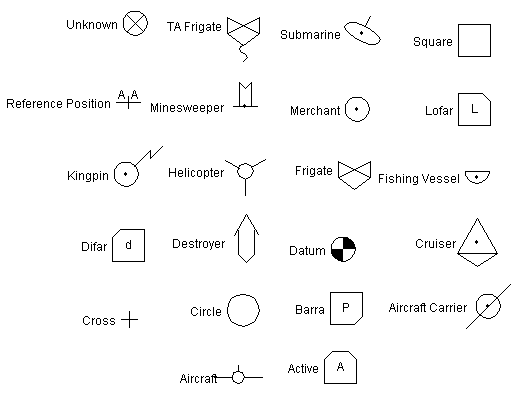
A set of symbols is provided within Debrief. The symbols can either be attached to a text label, or used to highlight a current vessel location when stepping through tracks.
Twenty-two Symbols are provided in 3 sizes. When the 2 smaller sizes are shown, any internal characters (as used in the sonar buoys) are not plotted.
Figure 6.1. Symbols provided by Debrief
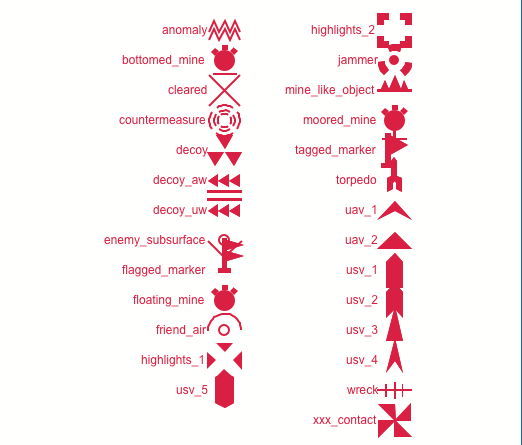
Debrief also contains a series of symbols that are recorded in SVG files. These files are plain SVG drawings that Debrief reads from file, and then renders at the required location. Some of the symbols can be assigned directly from their REP file symbology characters, as described in Table 16.3, “Debrief symbology symbol codes”. The other, non-indexed symbols can be specified from REP file using the extended symbology attributes described in Table 16.5, “Debrief extended symbology data fields”
Figure 6.2. Indexed SVG symbols
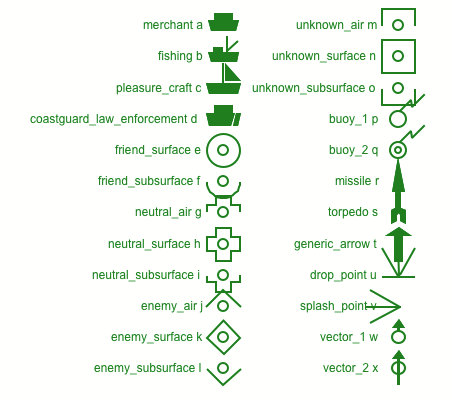
Figure 6.3. Non-indexed SVG symbols
Any label placed on the plot has a symbol type property (although the symbol itself may not be visible). The symbol can be changed through the properties window, or by right-clicking on the label on the plot.
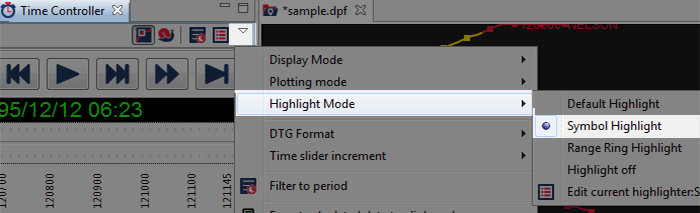
The final area where symbols are used is when stepping through tracks. Each vessel track has a symbol type property which is shown when the plot has SymbolHighlighter selected as the current highlighter.
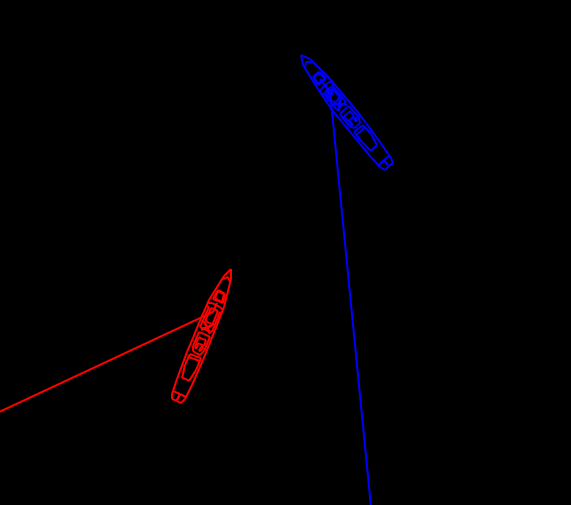
To access this property, select the Properties button on the Time Controller (the drop-down button on the view), and change to Symbol Highlight in Plotting Mode. As shown below:
Figure 6.5. Highlighting Symbols in Tracks
![[Tip]](images/tip.gif) | Tip |
|---|---|
|
By switching to Snail mode and reducing the reducing the Trail Length to zero, a GOP-type plot can be shown. |
| |  | |
| 5.2. Exporting engagements to PowerPoint |  | Chapter 7. External datasets |
![[Note]](images/note.gif)